
How to Install IPTV on a Smart TV
What to expect when setting up IPTV directly on a Samsung, LG, or Android TV-based Smart TV, without a separate streaming box.
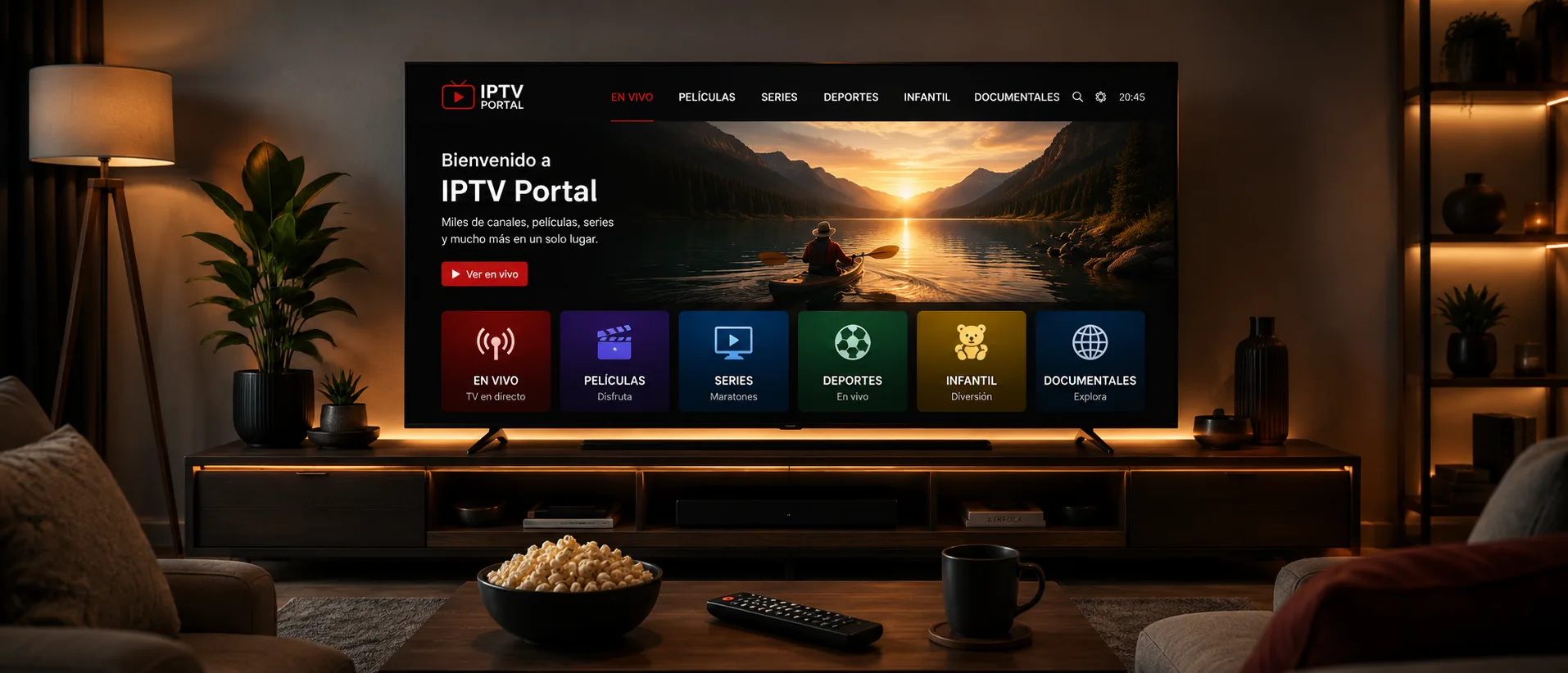
Check what your TV's app store offers
Smart TV platforms vary widely in what they allow. Android TV-based sets (many Sony, TCL, and Philips models) use the Google Play Store, so app availability is close to what you'd find on an Android phone. Samsung's Tizen and LG's webOS have their own, more limited app stores, and IPTV app availability there is inconsistent.
If your TV's own store doesn't carry a suitable app, an affordable streaming device like Fire TV or an Android TV box plugged into an HDMI port is usually the simplest fix — see our Fire TV guide for that route.
Installing and signing in
Search your TV's app store for a compatible IPTV player, install it, and open it using your TV remote. You'll be prompted for your playlist URL or username/password — the same credentials used on any other device tied to your subscription.
Text entry on a TV remote
Typing long URLs or passwords with a directional TV remote is tedious. Many Smart TV IPTV apps support a companion mobile app or QR-code pairing to enter credentials from your phone instead — check your app's settings menu for this option before typing everything manually.
Performance considerations
Smart TV processors are generally less powerful than a dedicated streaming box. If channels take longer to load or the interface feels sluggish, that's normal for older TV models — an external streaming device usually gives a noticeably snappier experience.